

Step 1 of 5
Install the WireGuard app
Open the app's page in the App Store and click Get.

Step 2 of 5
Create and download a device file
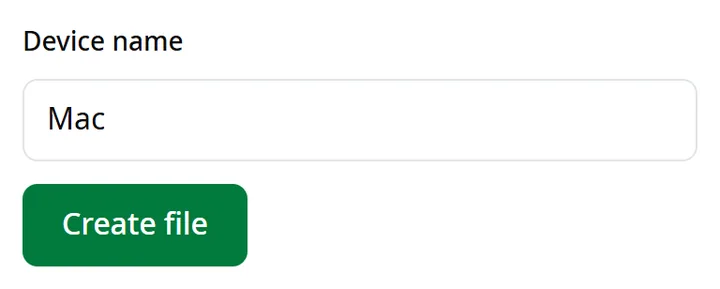
Open “Connect” in your account, choose “macOS”, then click “Create file” and “Download file”. No account yet? Create one.
Step 3 of 5
Import the file
In WireGuard, click Import tunnel(s) from file and choose the file from your Downloads folder.
Step 4 of 5
Allow the VPN
Your Mac asks once: click Allow.
Step 5 of 5
Turn on the tunnel
Click Activate. When the status shows Active, every program on the Mac uses a Syrian address.